

The outliner
Every page in Subspace, notes, agent definitions, meeting minutes, CRM records, is an outline: a tree of nodes (bullets), each with text as its source of truth and optionally an element (a table, code cell, terminal, custom function, or file) rendered in a node frame. The outliner is the surface you spend the most time in, and almost every other feature, links and embeds, page metadata, tables and formulas, agent runs, renders as bullets inside it.
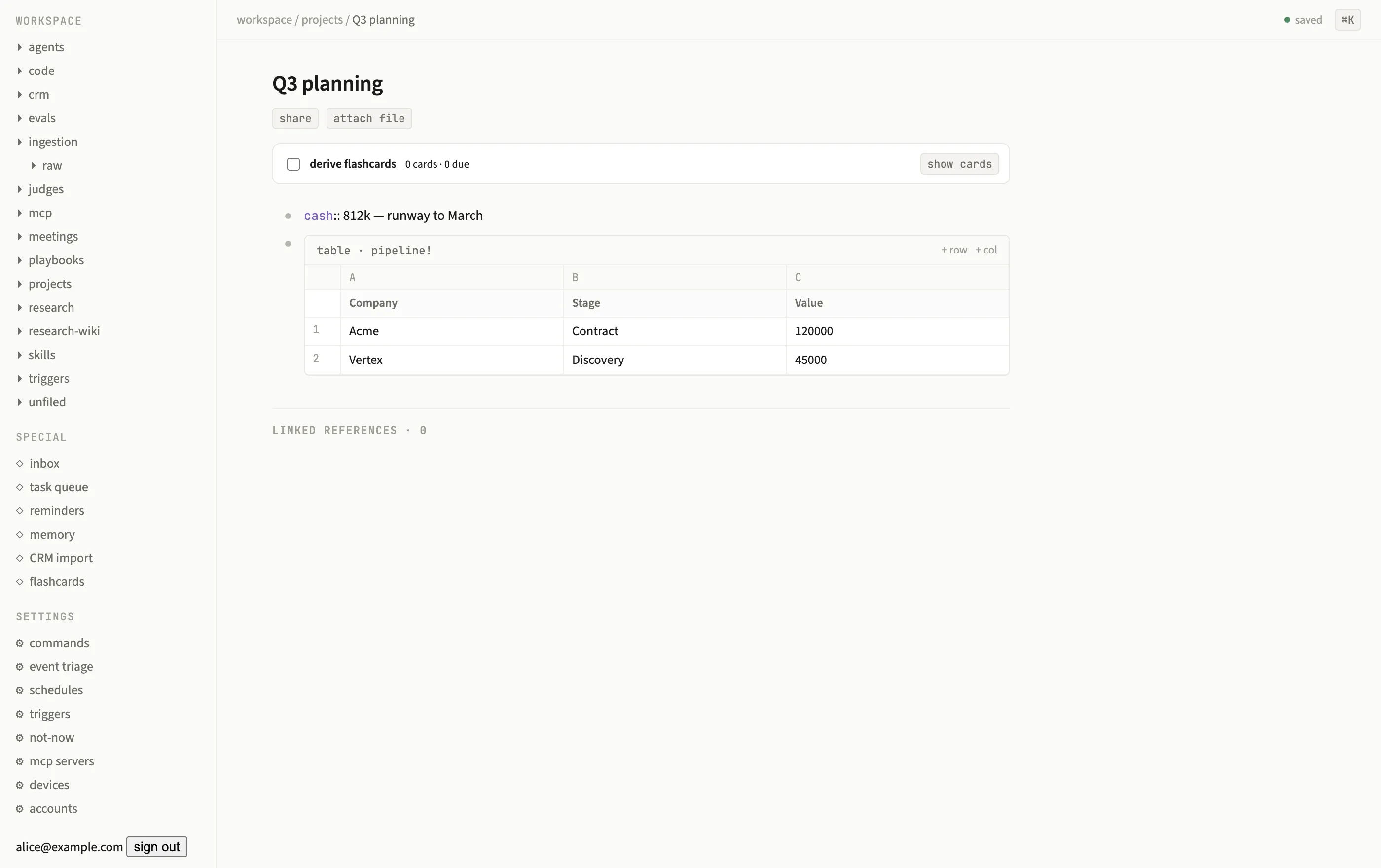
Every line is a bullet; a bullet can carry a table, a code cell, or a file.
An empty page shows “Click to start writing…”. Click any bullet’s text to start editing it in place.
Editing
Section titled “Editing”| Key | Effect |
|---|---|
Enter |
New sibling below the current node, or the node’s first child if the cursor is on a parent |
Tab |
Indent: make the node a child of its previous sibling |
Shift+Tab |
Outdent: promote the node to be a sibling of its parent |
Backspace on an empty node |
Delete the node and move focus up |
↑ / ↓ |
Move focus to the previous / next visible row |
Escape |
Commit the edit and blur |
⌘Z / ⌘⇧Z |
Undo / redo your own edits |
Pressing Enter on a folded parent unfolds it in that window only, since folds are
per-window view state (see Folds below).
Drag a bullet by its dot to reorder it among siblings or reparent it under a new parent; drop position (above, below, or onto another bullet) determines whether it becomes a sibling or a child. Node order is stored as a fractional rank key per node, so reordering one bullet never touches its siblings’ rows.
Slash commands
Section titled “Slash commands”Type / at the start of a bullet to open a popover of registered commands (custom
functions today; agents join the same menu), each with a description and a type badge.
Filter by typing, then press Enter or click to insert name( and hand off to the
argument UI. See Custom functions and
Agents overview.
Checkboxes and todos
Section titled “Checkboxes and todos”Start a bullet with [ ] and it renders as a checkbox with the rest of the line as its
label. Click the box to tick it, which rewrites the text to [x] . A checkbox is not a
special node type: it is a convention in the bullet’s own text, so ticking one is an
ordinary edit that undoes, syncs, versions, and exports like any other.
The prefix has to be exact: an opening bracket, a single space or lowercase x, a
closing bracket, then one space, at the very start of the bullet. These common near
misses are plain text, not checkboxes:
| Written | Result |
|---|---|
[ ] Ship the release |
A checkbox |
[x] Ship the release |
A ticked checkbox |
- [ ] Ship the release |
Plain text (Markdown list style is not stripped) |
[X] Ship the release |
Plain text (the x must be lowercase) |
[ ]Ship the release |
Plain text (a space after ] is required) |
While you are editing a bullet you see its raw text, including the prefix; the checkbox reappears when you click away.
The Todos page
Section titled “The Todos page”todos in the sidebar (/p/todos) collects every unticked checkbox in everything you
can read. It is an ordinary page holding a saved query over the
checkbox source, so you can open it, edit it, narrow it to one directory, or replace it
entirely. Your version is kept across restarts.
Checkboxes are deliberately separate from the task queue. The queue holds work the system generated and needs a decision on; checkboxes are your own text.
Hover any row and click the chevron that appears in the left gutter (▾ expanded, ▸ collapsed) to fold or unfold its children. A collapsed parent shows a halo around its bullet so you can tell it is hiding content.
Folding a bullet only hides its subtree in that view; it has no effect on
search, backlinks, or
what an agent’s kb.read tool sees.
Zoom and hoist
Section titled “Zoom and hoist”Click a bullet’s dot to zoom into it: that node becomes the view’s root, and only its subtree renders, as if it were its own page. A breadcrumb across the top (page › ancestors › node) shows your position and lets you zoom back out one level at a time.
Zoom state is URL-addressable: /p/<slug>?zoom=<nodeId>. That means a zoomed view is a
shareable link and survives a reload, a refresh, or opening the same URL on another
device. Zooming ignores the root node’s own fold (you always see its direct children even
if it was collapsed in the outer view); descendants below the root still fold normally.
Open a bullet as a pane or tab
Section titled “Open a bullet as a pane or tab”In the desktop app, you can work on two parts of a page (or two different pages) side by side without leaving the outliner:
⌥↵(Option/Alt+Enter) with your cursor on a line opens that bullet, zoomed, in a side-by-side shell pane.⇧-clicking the bullet dot does the same thing.⌥⇧↵promotes the bullet to a full new tab instead, the same way the terminal’s ⇱ button promotes a pane to a tab.
Both the origin outline and the new pane or tab are live, independent, routed views of
the same underlying page: edits in either one sync through the shared reducer, so
typing in the pane updates the bullet in the original outline immediately. The pane/tab
layout persists per window in kb.view_state, so it survives a reload. Click the × on
a pane to fold it back to a single view.
Without the desktop shell (on web or mobile), both shortcuts fall back to in-place zoom navigation instead of opening a second view.
Convergence and undo
Section titled “Convergence and undo”Edits apply optimistically: the client runs your command through the same pure
reducer the server uses, updates the screen instantly, and holds the command in a
pending list until the server echoes it back over /ws. Multiple windows and multiple
users converge to the same document, last-write-wins in server commit order. The header’s
save indicator (data-dirty) shows whether you have un-acknowledged commands in flight.
⌘Z / ⌘⇧Z undo and redo your own commands by issuing their reducer-emitted
inverses as ordinary new commands, so undo is itself just another convergent edit. See
the command model for how the reducer, optimistic apply,
and rebase fit together.
Design tokens
Section titled “Design tokens”The outliner’s visual language is a small, fixed token set (from the design system’s Foundations sheet), exposed as CSS custom properties:
| Token | Value | Used for |
|---|---|---|
--canvas |
#fafaf8 |
Page background |
--surface |
#ffffff |
Cards, popovers, node frames |
--hover-wash |
#f4f3f0 |
Row hover background |
--hairline |
#e9e7e2 |
Default dividers |
--chrome-hairline |
#f0eee9 |
Chrome/toolbar dividers |
--guide |
#eceae5 |
Indent guides |
--faint-ink |
#9e9c94 |
Placeholder / de-emphasized text |
--secondary-ink |
#6e6c66 |
Secondary text |
--ink |
#1c1b1a |
Primary text |
--accent-link |
#3e63c4 |
[[links]], the brand blue |
--accent-agent |
#7b5bc4 |
Agent affordances, the brand purple |
--accent-ok |
#4c8a62 |
Success / normal-severity states |
--accent-attention |
#b07c22 |
Important-severity states |
--accent-urgent |
#b4453c |
Ultra-severity states |
--bracket |
#b9c4e0 |
[[ ]] bracket glyphs |
--tag-ink / --tag-bg |
#6b7ca8 / #eef0f6 |
#tag chips |
--embed-rule / --embed-bg / --embed-head |
#d8deef / #fafbfd / #8a94ae |
((embed)) blocks |
--font-ui |
'Source Sans 3', -apple-system, 'Segoe UI', sans-serif |
UI and node text |
--font-mono |
'JetBrains Mono', ui-monospace, SFMono-Regular, monospace |
Code cells, terminals |
--indent-step |
22px |
Horizontal offset per nesting level |
--shadow |
0 1px 3px rgba(28, 27, 26, 0.05) |
Elevated surfaces |